
Uncovering the Different Semantic Model Modes in Power BI
- Jan 19
- 5 min read
Updated: Jan 20
Picture this, you are in the process of developing a new report and have your data ready to be loaded into Power BI from the source and are contemplating which storage mode to use.
You go ahead and click "Import" as this is the mode you have always used. Is this correct though? Should we always use this method when connecting to a data source? The answer is: No, you should make sure the mode you choose is fit for purpose.
Choosing the correct semantic model mode (formerly storage mode) for your report is a very important concept to understand, in Power BI, as the mode you use will have an effect on what you can or cannot do with your data once it has been retrieved from the source.
In this article I will be going through the different semantic model modes to help you decide which one is fit for your specific reporting needs.
These modes are:
Import
DirectQuery
Dual
Live Connection
DirectLake
1) Import
This mode copies all the data directly into Power BI and stores the data in its internal semantic data model. This mode gives you a snapshot of your data at a point in time and offers fast query performance and response times as the data is stored within the model itself.

Pros:
Fastest performance and report responsiveness as the data is stored in memory.
Supports Power Query transformations.
Offers flexibility regards to data modelling and calculations within the model.
Cons:
The data needs to be refreshed to display the latest data that is available in source.
Large datasets can impact report performance.
The Import mode is not suited for real-time data access and analytics.
2) DirectQuery
In DirectQuery mode, Power BI creates a connection directly to the data source, while queries are sent to the source in real-time. This mode is ideal for large datasets or live data that frequently changes.
DirectQuery may be slower than the Import option as the queries are dependent upon the performance of the underlying data source.

Pros:
Data is not stored in the Power BI model which will reduce the size of the report.
Ideal for real-time data analysis for frequently changing data.
Increased scalability as larger datasets to not affect the overall size of the report.
Cons:
Power Query transformations are limited.
Each query has a limit of 1 000 000 rows.
Slower query performance, as the data refresh depends upon the underlying source.
N.B. You cannot change the mode to DirectQuery once Import has been selected.
3) Dual
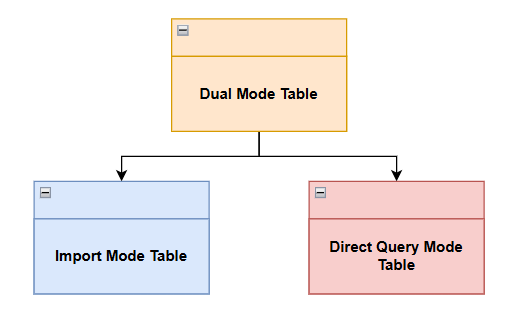
In Power BI, this mode refers to a configuration where a table can act as both Import and DirectQuery depending on the context of the query. This option provides a powerful way to balance the benefits of both modes within a single model. This mode is useful when you need both fast analysis and access to the latest data within your report.
Pros:
Faster analysis for frequently accessed data due to the Imported partition.
Access to the latest data for large datasets through DirectQuery partitions.
Avoids storing the entire dataset in the model, saving storage space.
Cons:
Can be complex to implement and requires careful design and configuration.
This mode is only available in Power BI Premium Capacity workspaces.
Queries using both the Import and DirectQuery partitions might be slower than just using the Import mode.
4) Live Connection
Using Live Connection means that you are connecting your Power BI report to a semantic model that already exists in SSAS (SQL Server Analysis Services), AAS (Azure Analysis Services) or the Power BI service. This mode allows you to use existing data models to create reports without duplicating data or maintaining additional models.

Pros:
Saves development time as existing models can be reused.
Well suited for real-time data needs.
Ensures report consistency as the same model can be used by multiple developers across different reports.
Cons:
Power Query transformations in Power BI Desktop are not available.
The underlying schema of your model cannot be modified in the report.
Limitations on measures that can be created.
5) DirectLake (Fabric only)
Direct Lake Mode is a hybrid storage option with Microsoft Fabric. It enables Power BI datasets to directly access data stored in Delta Lake or Parquet format within OneLake, Microsoft’s unified data lake architecture.
Direct Lake Mode reads data in-memory from the Lakehouse/Warehouse, offering a balance of speed and real-time analytics.

Pros:
Bridges the performance vs freshness gap between Import and DirectQuery.
Data is available near to real-time.
Data does not need to be copied into Power BI, reducing storage costs.
Cons:
Data source must be a Fabric Lakehouse, Warehouse or KQL database.
Data must be in Delta format within OneLake.
Calculated Tables & Columns cannot be created directly in a report using DAX.
Choosing the correct mode: Real life scenarios
Scenario 1: You have a SQL database that contains a table with sales information. The data needs to be refreshed once a day and aggregations need to be performed on a months worth of data. There are currently 300 000 records in the table and around 5000 are added per day
Which mode should you use?
Answer: In this case I would select the Import mode as the dataset is relatively small and a refresh only needs to be done once a day.
Scenario 2: A manufacturing company has installed a sensor on one of their production lines, to monitor some variables related to the quality of the product, as it passes through the production process. This data is stored in a SQL database.
You need to build a report to display the average number of defects that have occurred in this production process over the last half an hour. The data must be refreshed every 20 minutes and the underlying table contains 2 billion records.
Which mode should you use?
Answer: In this case I would use DirectQuery as there is a requirement to refresh data in near to real time and the source table is very large.
Scenario 3: You are the manager of a large retail store and have a requirement to build a sales report to analyze sales data in near to real-time. The data already exists in Fabric's OneLake, stored in a Delta format.
Which mode should you use?
Answer: I would use DirectLake as the data already exists in Onelake and there is a requirement for near to real-time data analysis.
In closing, each semantic model mode has its advantages and disadvantages and it is important to consider the specific needs of the report before deciding upon which mode to choose.
If you enjoyed this post, please like and comment below and subscribe to get notified when we publish a new article.
Happy developing!


Comments